I having a dickens of a time getting the spacing between these letters smaller. I’ve tried kerning a metrics but they are still too far apart.
Perhaps I’m not doing the kerning correctly: I choose ‘kerning’, then adjust the 4 pairs until they seem close enough, but when I click on ‘ok’ and test the font, the pairs are still not close enough. Is there some other step that I’m missing?
Bob
The test font window does not support kerning. Try the Preview Toolbar instead.
The test font window will, however, show you if some letters need their side-bearings adjusted. If spacing is done well you will need fewer kerning pairs. Pairs like AV, AW, will need kerning in many font designs. I found that I tend to apply too much kerning rather than too little, and later have to reduce it.
Don’t spend too much time on manual kerning at first. Do a rough job with the automatic kerning wizard (Pro Edition only), adjust a few pairs manually if they’re obviously wrong, install the font, then proof-read a long document that uses the font to see how it performs.
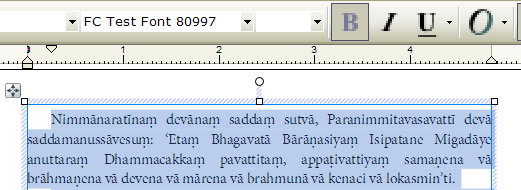
It is also possible to test a font without installing it by leaving the Font Test window open and applying the temporary font created by FontCreator (named FC Test Font nnnnn) to text in your word-processor or DTP application. Enable kerning for the point size you have used. By default, word-processors may not apply kerning below a certain point size.
You can find some useful text samples at Kern King for testing kerning and letter spacing.
Thanks for the fast reply. I used the font preview window and it showed the AW etc were very close together. Then I saved the font, and installed it in Win XP, but the AW etc were still too far apart. The preview did not show the proper relationships between the letters.
Also, I tried a preview in my MS Word 2003 as suggested, but was unable to get it to work because I could not find the temp font number. How does one know what the temp font number actually is?
Bob
Maybe you had not enabled kerning in your word-processor. The Preview Toolbar (not the Font Test window) does show kerning.
Fonts in applications are listed alphabetically so you do not need to know the number. Just look for the font beginning FC Test — there will only be one.
If you’re still having trouble, attach your font here. I don’t have time now, but will look at it later.
Also, many applications will only list fonts that were installed before the application was started.
So, if there is not a font with its name beginning FC Test in the font list of the application, the application may need to be closed and then started again.
When the FontCreator test window is opened, at least after a change to the font (maybe always, I am not sure about that part), a new number is generated to go into the FC Test name, so the application may need to be closed and then started again.
William Overington
7 June 2011
Thanks for the informative posts. Once I was clued in about MS word, there was no difficulty in finding the test font and trying it out with Word. I’m still having difficulty with closing up the AW etc. but I was able to compress the space a little bit by using the metrics and changing the white space between the various pairs. Odd though that the kirning window and the preview both showed the letters as being very close together, but when the font is installed the closures are not reflected.
I do not know if it will help, but I remembered that when the issue of kerning came up a few years ago I tried learning about it, making a font that I named Kern Deco.
Here is a link to the Gallery thread: the first post has a link to the original Support thread.
I have not trained as a type designer: my fonts are perhaps what is known as “outsider art”. There are quite possibly things in the designs that a formally trained type designer would know not to do! However, that said, I have mentioned the earlier threads in case they might be helpful to you in your learning as the Kern Deco font includes kerning for WA, VA, AW and AV. If you choose to download a copy of the font and open it in FontCreator, then Format Kerning… leads to the kerning.
William Overington
8 June 2011