Thank you very much. The effect is excellent, optimizing the outline points and reducing the file size.
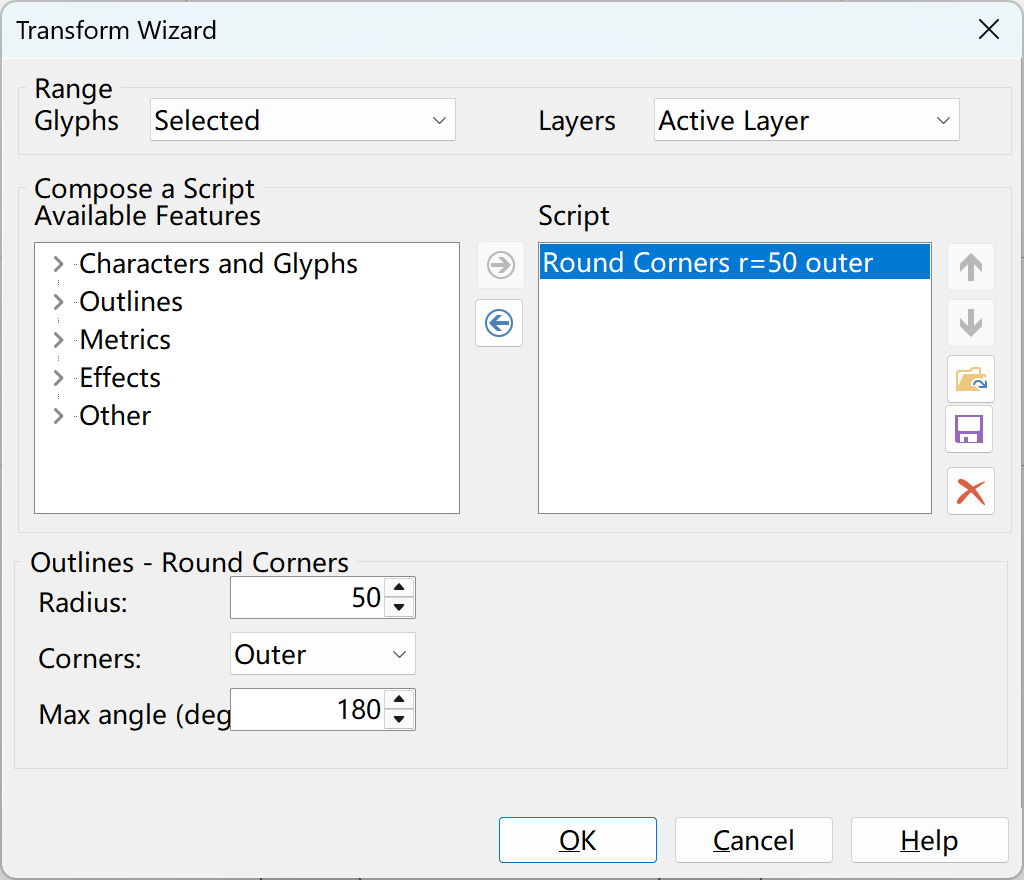
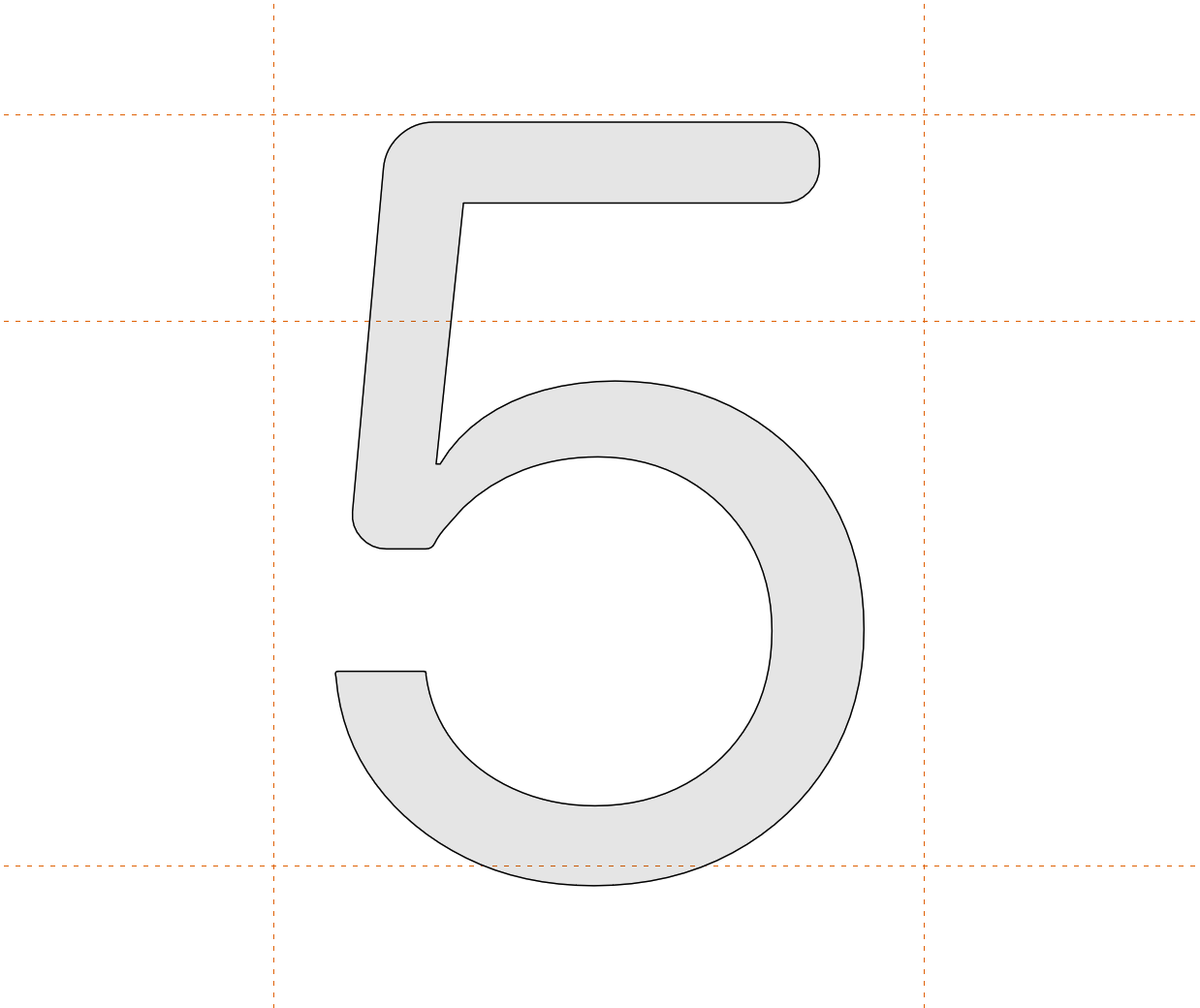
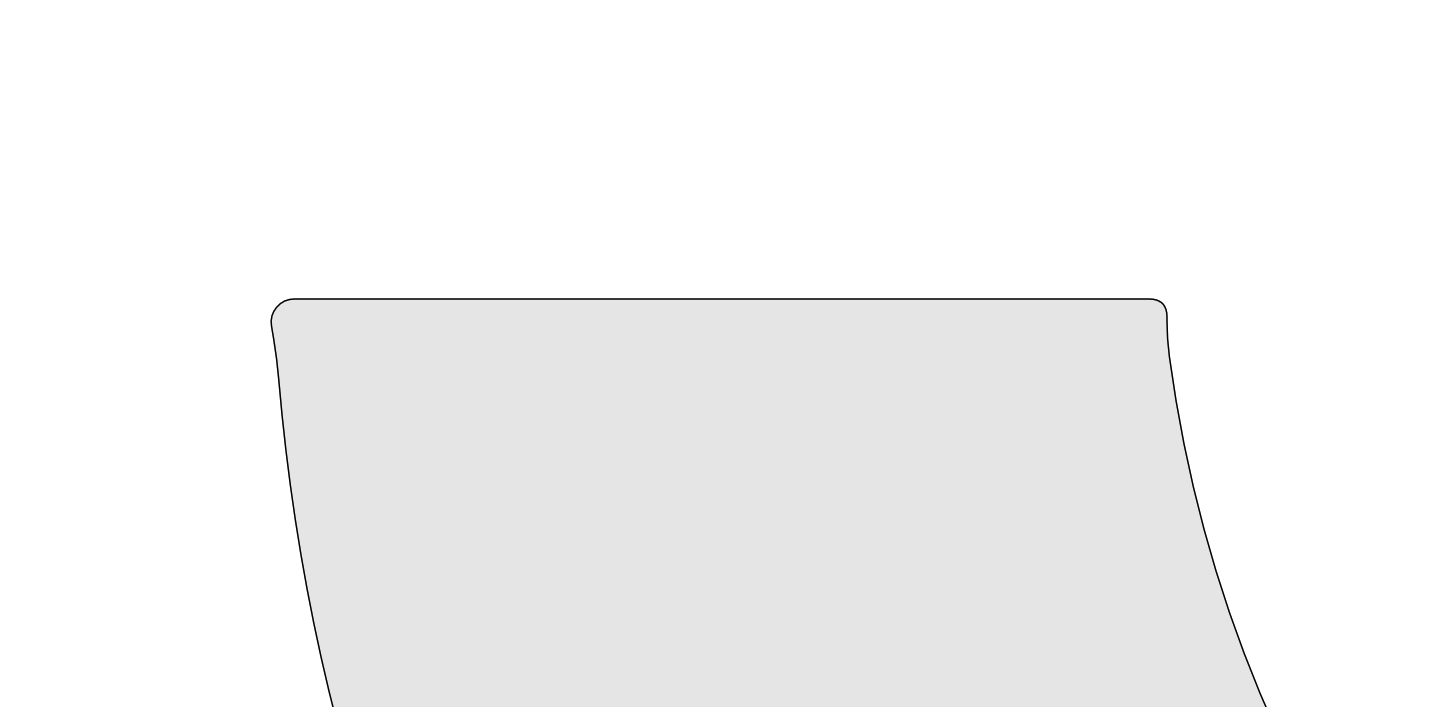
Sorry to bother you, but I still have a question. After rounding corners, some characters have very small angles, such as 5, with a large rounded corner above and a very small one below. This looks a bit odd. Under default settings, you can’t see the rounded corners below, and you can only see the very small ones when the screen is zoomed in greatly. When the maximum angle is set to 179 or 180, the same is true. Could you enlarge the rounded corners below? Thank you.
Do send the font files to us so we can look into it.
Already uploaded, thank you very much!
3.ttf (126.3 KB)
The adjacent segments are very short, so that is causing the problem. I will see if I can improve the algorithm, but it will take some time.
Also, in the font we worked on last time, the × wasn’t rounded. Why wasn’t the right angle rounded? The corners can only be rounded after the outlines are merged.
Video.7z (2.1 MB)
Source file.7z (3.5 MB)
We have just released an update that now includes an option to absorb short segments. For now it is available from the Glyph menu. We will add it to the Glyph Transformer in a future release.
You’ve got it exactly right. This × is drawn as two separate overlapping bars not one merged outline. Round Corners works on the actual corner points, and the right angles you’re looking at (the notches where the two bars cross) aren’t points at all; they’re just where the two overlapping outlines meet. So there’s nothing there for the tool to round.
Run Glyph ▸ Join Contours ▸ Union first to merge the bars into a single outline. That creates real corner points at the intersections. Then apply Round Corners. The same goes for any glyph built from overlapping, unmerged strokes.