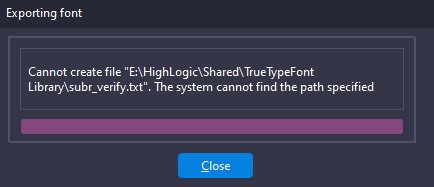
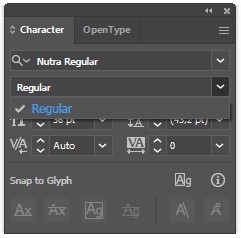
I’ve a problem with a variable font project in FontCreator. The first issue I noticed was with the export. Even though I have multiple masters and axes set up, FC only exported the “Regular” weight.
To make things more complicated, I can’t even use preview features. Whenever I try to use the “Test Desktop Font” or “Test Web Font” features, an error notification pops up immediately and prevents the test window from launching.
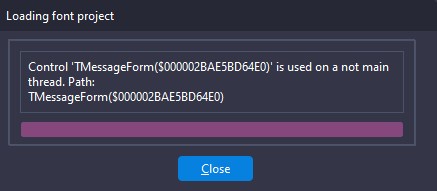
The most frustrating part is when I recently try to open my project another error notification pops out. I get another notification error whenever I try to load it, and the file just fails to open entirely.
I just updated to the latest version. 2 of those 3 problem are solved. Still, when I try to export variable font it’s only exported the regular weight.
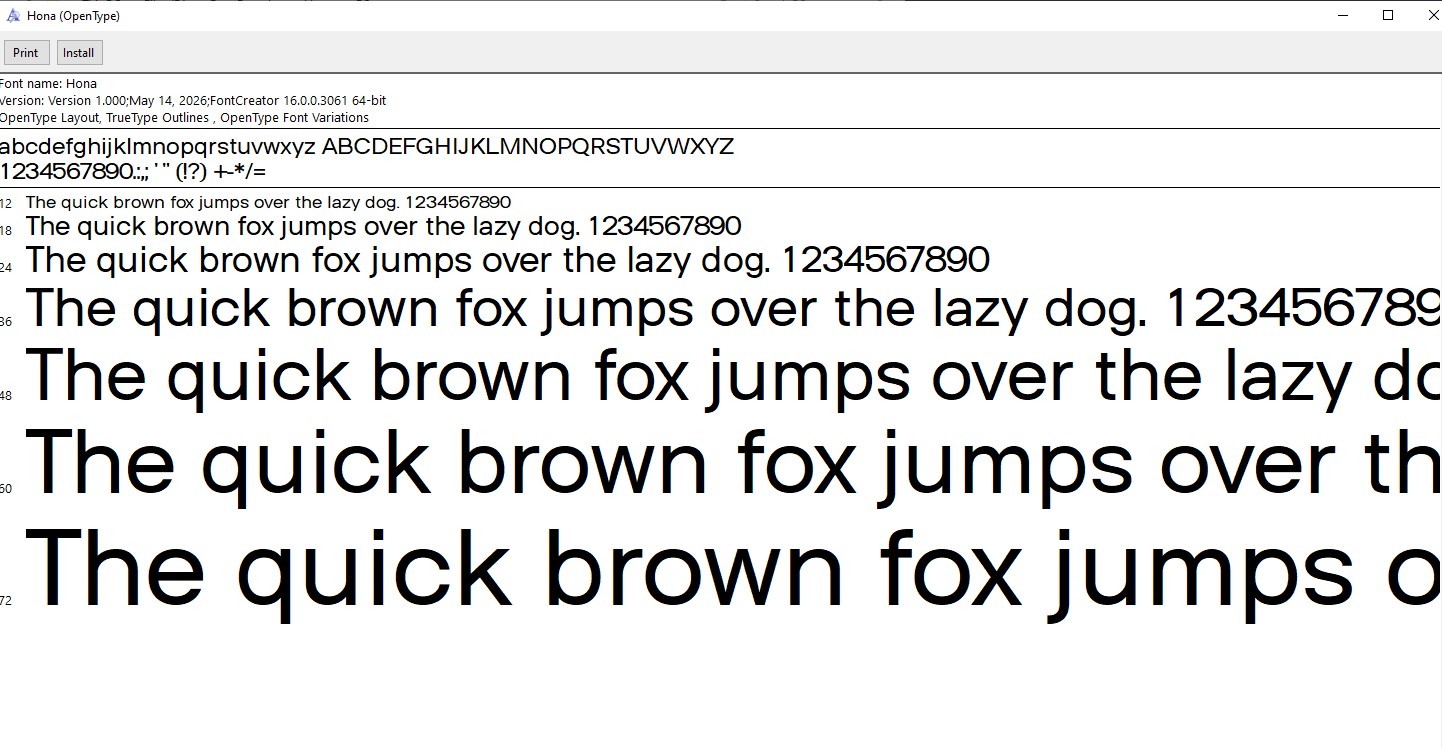
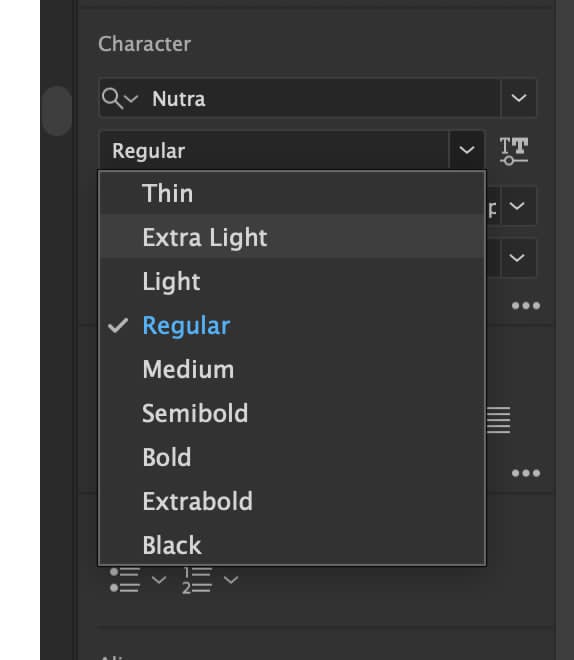
Yes. The problem is when I install the font only the regular weight are installed. And there is no “variable font” features when I tried it on adobe illustrator.
I have an update regarding the variable font issue. I recently had a friend install the font on their computer, and it worked perfectly. The variable features and all font weights are available.
However, when I try to reinstall the font on my own desktop, it still only loads the regular weight, and the variable features don’t work.
Do you have any idea why this is happening and how I can fix it?
Since the font works correctly on your friend’s PC, the font itself is most likely fine.
Your screenshot does not look like a Windows font dialog; it looks more like an Adobe application. In that case, Adobe may still be using an older cached copy of the font, or the font may also be installed/managed through Creative Cloud.
Please try the following:
Close all Adobe applications.
Also quit the Adobe Creative Cloud desktop app.
In Windows, uninstall all copies of this font family. Also check whether it is installed both “for current user” and “for all users”.
Open the Creative Cloud desktop app, go to the Fonts section, and check both installed/added/uploaded fonts. Remove any copy of this font family there as well.
Close Creative Cloud again.
Clear the Windows font cache:
Enable hidden files in File Explorer.
Go to: C:\Windows\ServiceProfiles\LocalService\AppData\Local
Delete files named like *FNTCACHE*.DAT or *FontCache*.dat.
If present, also delete Adobe font list cache files named AdobeFnt*.lst, for example in: C:\Program Files\Common Files\Adobe\TypeSpt
Do not delete AdobeFnt.db or FontNames.db.
Restart Windows.
Install the variable font again.
Start the Adobe application and test again.
If the issue remains, please test the font in another variable-font-aware application as well. That will help confirm whether this is specific to Adobe or still a system-level font conflict.