Tagging Multiple Glyphs in Several Fonts
I am currently working on a set of eight font styles and wanted to check several glyphs across all ten type styles. Currently, tags cannot be copied from one project to another. Here is a method to work around this using the Glyph Transform wizard.
Selecting the Glyphs in one font for Tagging
- Scroll through the entire font adding glyphs that need attention to the Preview Toolbar using the shortcut Shift P.
- Copy the glyph names from the bottom of the Preview Toolbar, using End, Shift + Home, Ctrl C
- Paste into notepad, and replace / with a space
- Open the Glyph Transform Wizard from the Tools menu and add the feature “Override Range by Glyph Name(s)” to the script
- Paste the glyph names from notepad into the list of glyph names
- Save the script, and then run it.

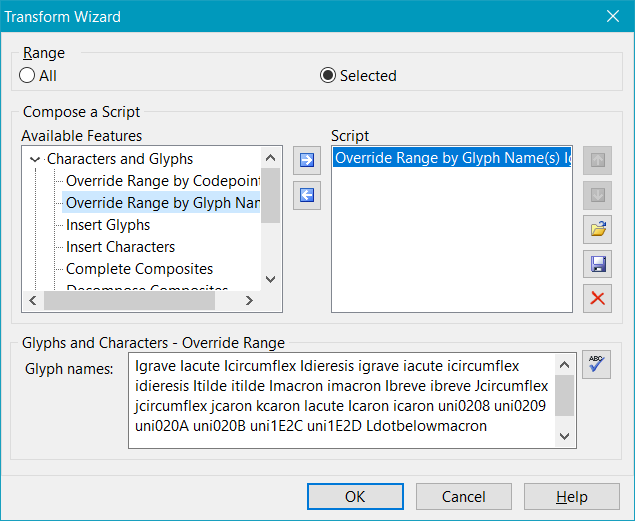
Tagging the Glyphs
All of the named glyphs will now be selected. Use the Ctrl 1 shortcut to tag the glyphs as “ToDo” (or use any of the other four tags).
The script can then be run to quickly tag the same glyphs in other typeface styles or fonts.
Tagging More than 256 Glyphs
The number of glyphs that can be added to the Preview Toolbar is limited to 256 at a time. However, there is no obvious limit to the number of glyph names that can be added to the “Override Range by Glyph Name(s)” feature. I tag over a thousand glyphs in my large fonts for exclusion from the Web and WOFF versions. Now that I have saved a transform script for tagging glyphs I can easily edit the list, or tag another font or type style in the same way.